How do I update my contact information and profile?
From within your My AILA Page. Here's how to keep your AILA profile and contact information up to date.
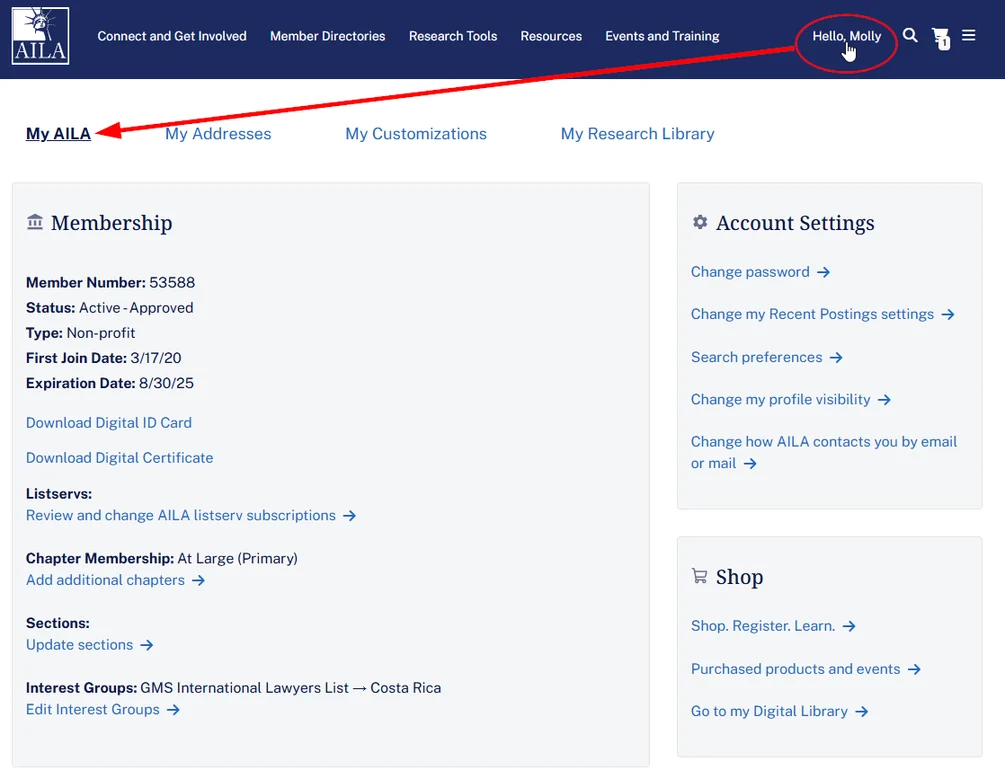
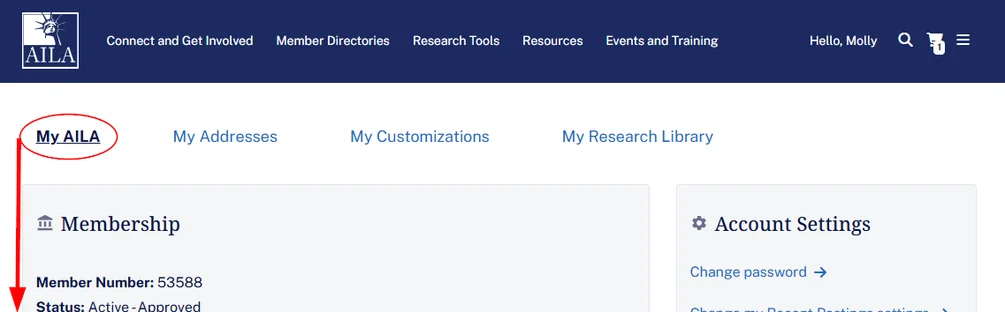
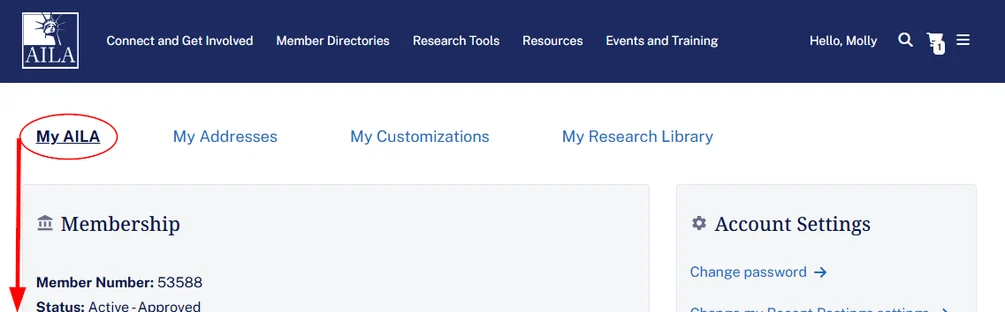
First, log in to AILA.org and click on the welcome message at the top-right to open your My AILA Page.
To update your Mailing Address:
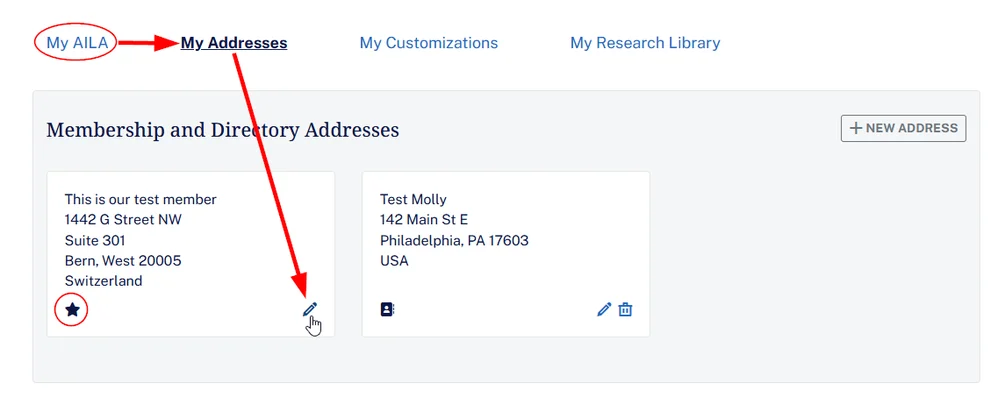
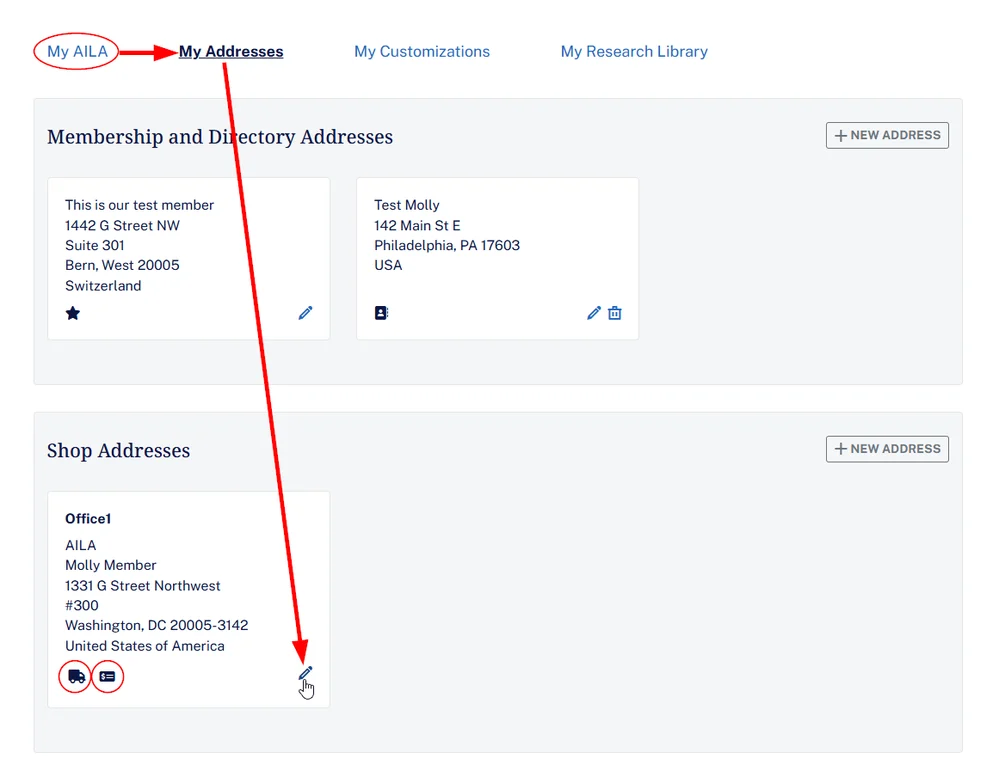
Click on "My Addresses" near the top of the page, then on the pencil icon at the bottom-right of your mailing address in the "Membership and Directory Addresses" pane. If you have more than one mailing address, be sure that you're updating your primary mailing address by looking for the star icon at the bottom-left of the address.
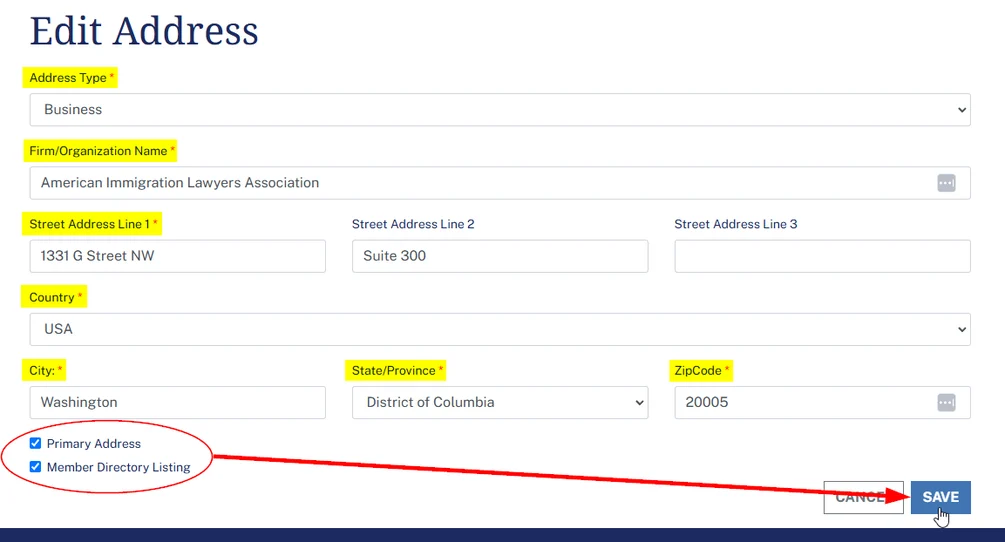
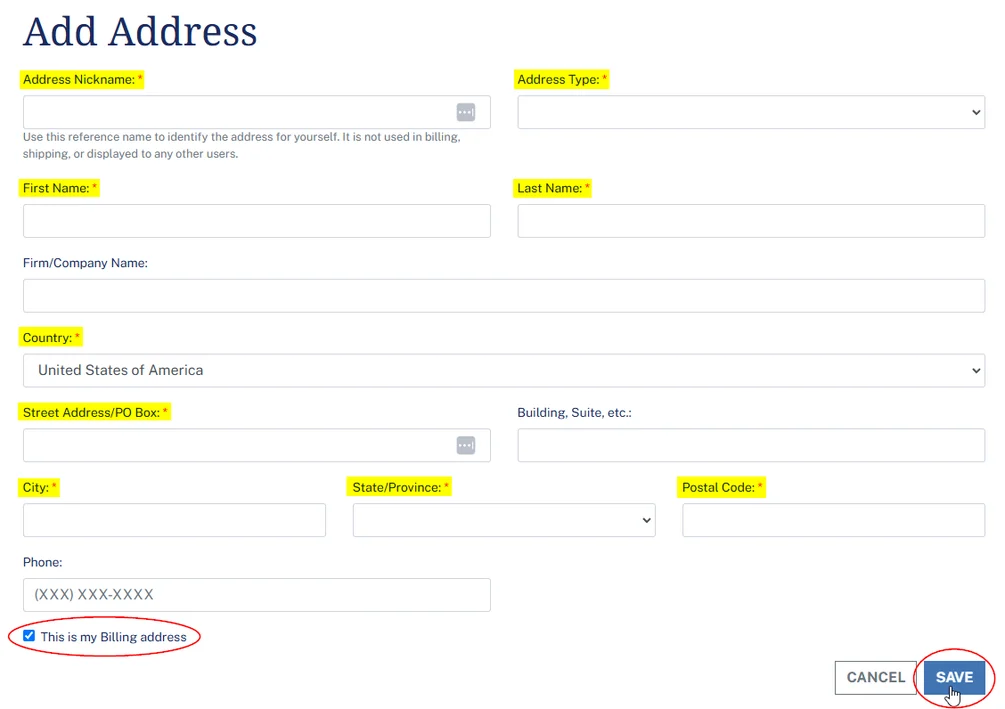
All required fields are denoted by a red asterisk (*). You must have one primary mailing address, but you do not need to share your address on the Member Directory. If you don't wish to have this address shared to the Member Directory, ensure "Member Directory Listing" is unchecked. Save your changes when you're done.
To update your Shop Address:
Scroll down within "My Addresses" and click on the pencil icon at the bottom-right of your Shop Address. You may have a different billing address than your shipping address. Look for the truck icon at the bottom left of the address to identify your shipping address, and the credit card symbol at the bottom left of the address to identify your billing address.
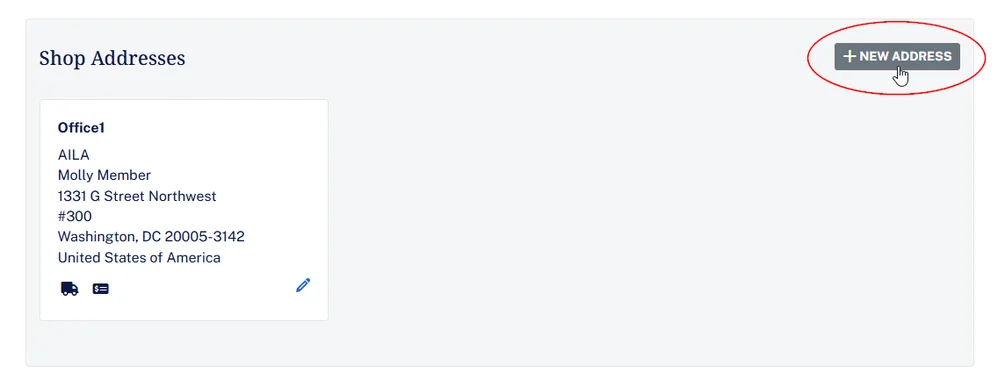
Add a new address with the "+ New Address" button at the top-right.
All required fields are denoted by a red asterisk (*). Check the box at the bottom-left if you wish to use the address as your Billing Address. You may have one Billing Address active at a time. Save your changes when you're done.
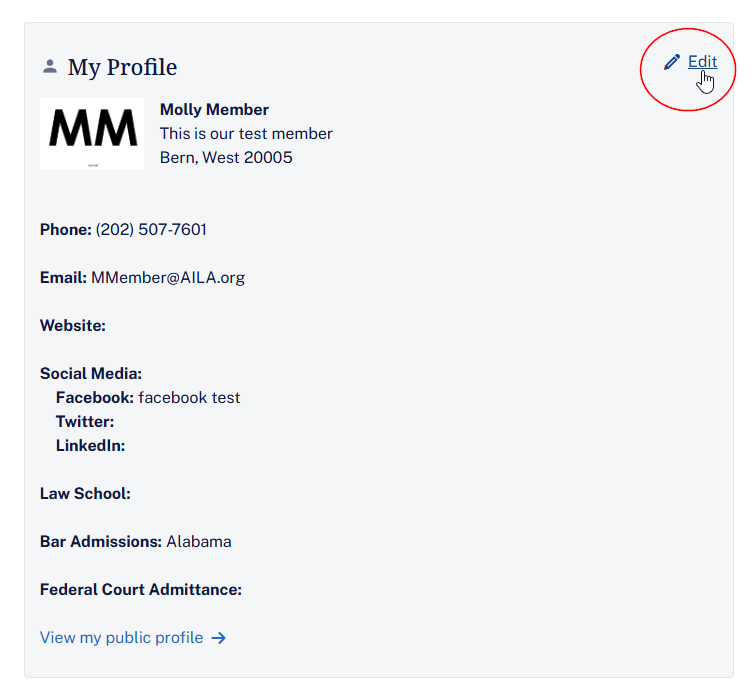
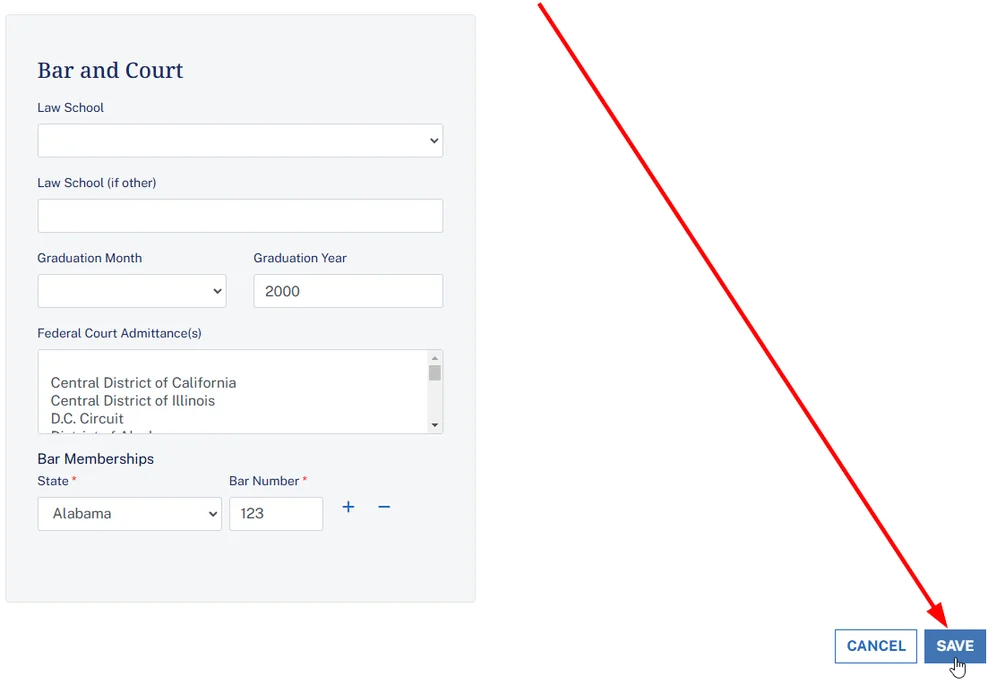
To update your Email Address, Phone Number, Social Media, Profile Picture, Law School, "About Me," "My Firm Bio," or State Bar Admissions/Federal Court Admittances:
Scroll down from your My AILA Page and click Edit near the top-right of the "My Profile" pane.
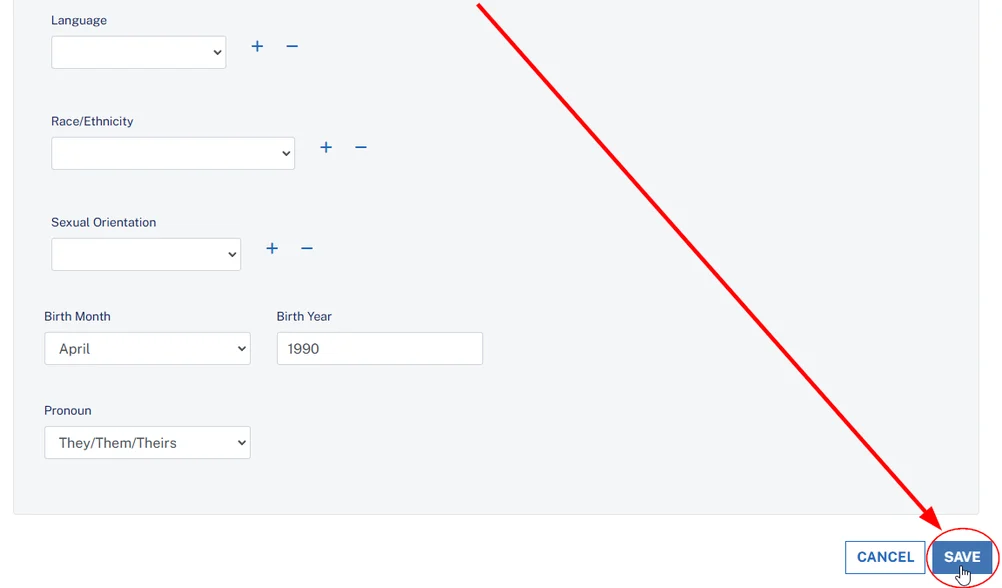
When you've completed your changes, scroll to the bottom of the page and click "Save" to save your changes.
To update your Areas of Practice, Employment Information, Language Proficiencies, and other Demographics Information:
Scroll to the bottom of your My AILA Page and click on Edit near the top-right of the Demographics pane.
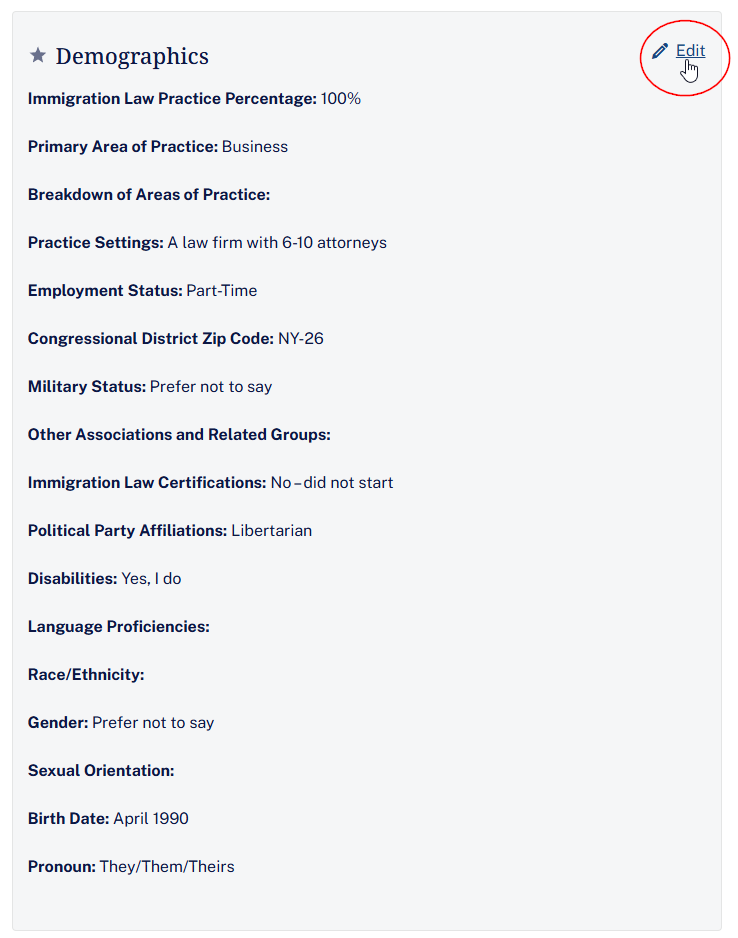
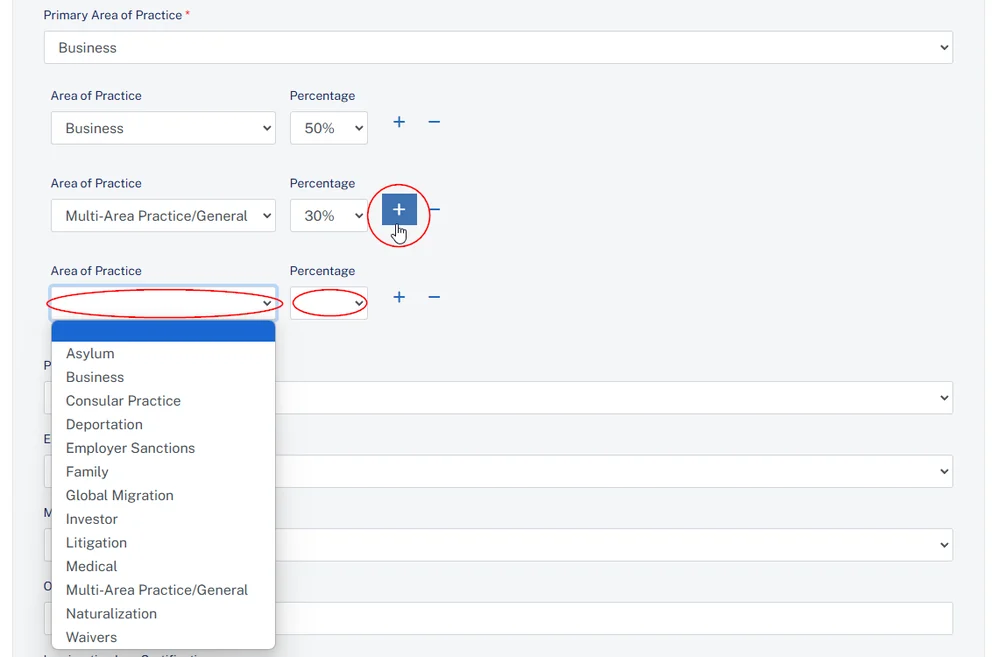
Choose options from the drop-down menus in each field. To list multiple areas of practice, click the plus sign (+) and choose the area of practice and percentage from the drop-down menus on the new line.
When you've completed your changes, scroll to the bottom of the page and click "Save" to save your changes.